This chapter is aimed at Company Admin — the role that invites people, sets company roles, and assigns company or facility access.
Other roles that see nothing useful after sign-in should ask the Company Admin to check grants, or contact NRIZ support if no Company Admin is available.
How access is built
Access in NRIZ is not a single switch. It combines three layers:
- Account — the person can sign in (username / password or invitation flow).
- Company relation — the account is linked to the company (active relation).
- Grant — what that person may do: company-level data and/or one or more facilities.
Missing any layer usually looks like “empty portal” or missing forms. Fix the layer that is missing before creating forms.
Open the users list
- Sign in as Company Admin.
- Open My company.
- Open Users List.
The table of active users shows status, name, username, contact, and roles. When invitations are waiting, Pending Invitations appears below. Pending access requests appears only when such requests exist.
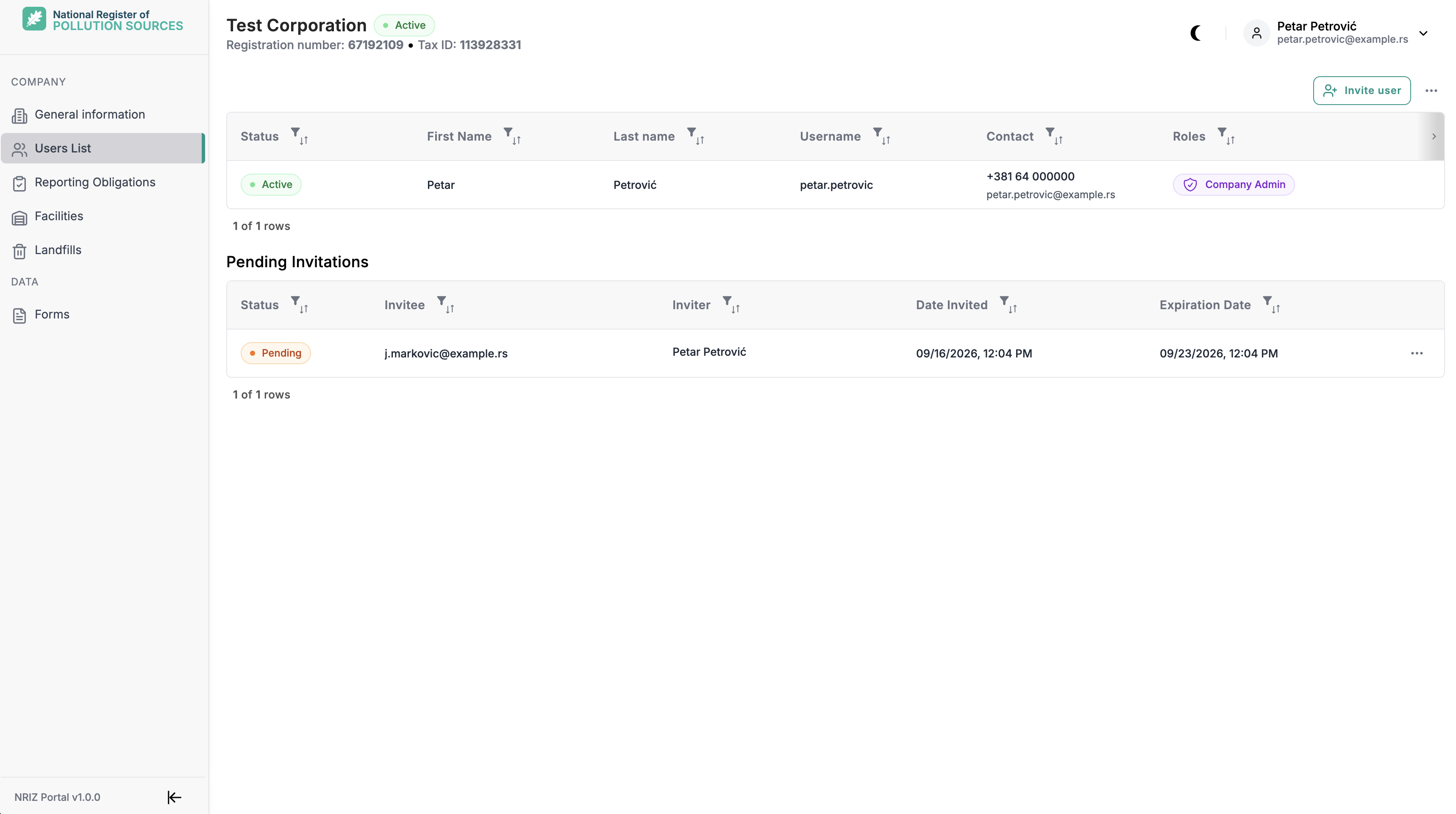
Invite a user
Invitations require an active company. Select Invite user.
The first step is the invitee Email Address. Select Invite so the portal can check whether an account already exists for that address.
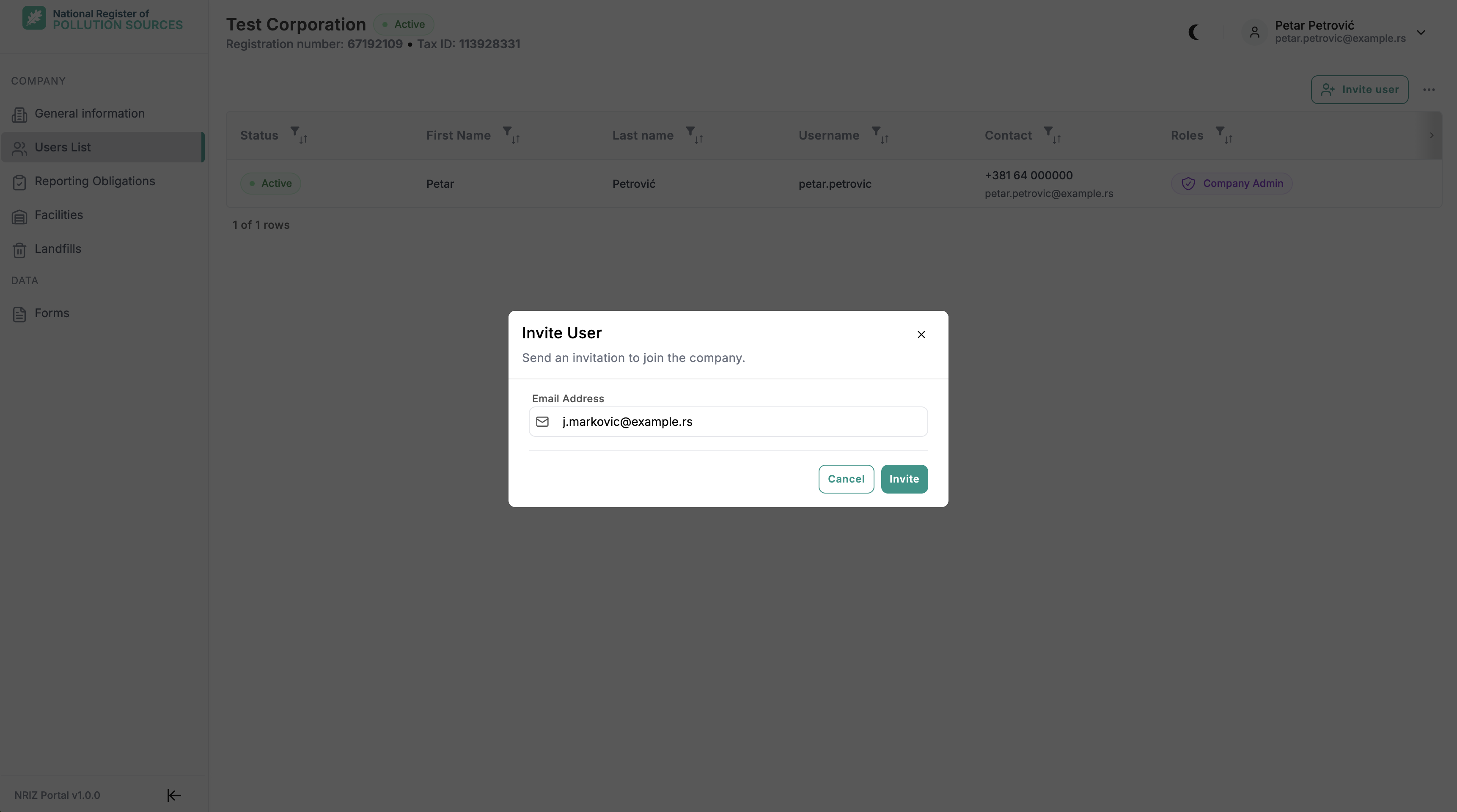
What appears next depends on that check.
No account yet
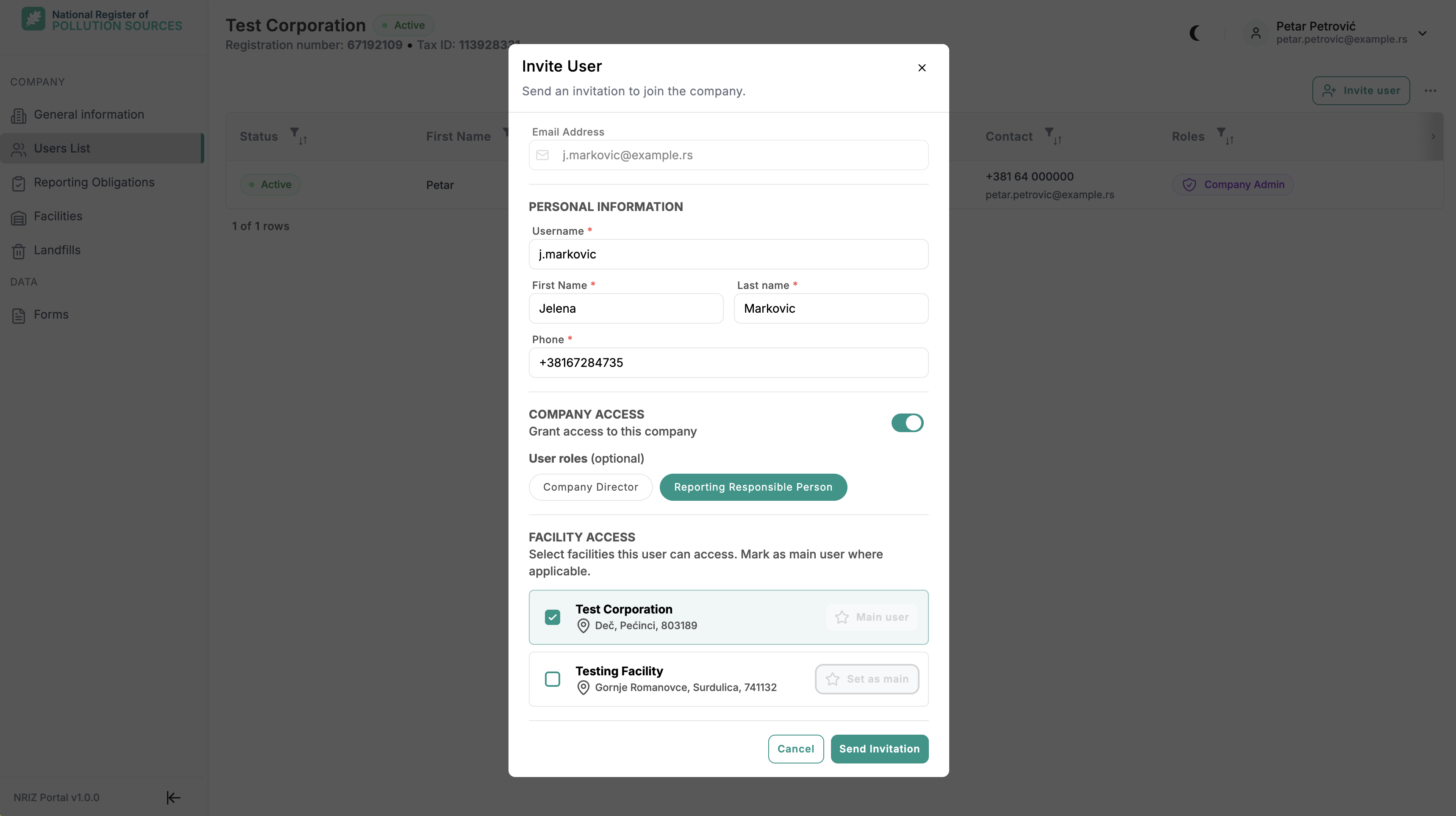
When the email is not registered, Company Admin must complete Personal information before access can be set. These fields are required:
- Username (used later to sign in)
- First name and Last name
- Phone
Account already exists
When an account already exists for that email, personal information is not entered. The portal shows that an existing platform user was found. Registered name and contact stay as they are on the account.
If the person already has access to this company, or already belongs to another company in NRIZ, the invitation is blocked and a different email must be used.
Access and roles
The same access block is used whether the account is new or already exists:
- Company access — grant access to this company (on by default). When this is on, optional User roles can be assigned immediately: Company Director and Reporting Responsible Person.
- Facility access — select one or more active facilities. A selected facility can be marked as Main user (responsible person for that facility).
- Company access or at least one facility must be selected.
- Select Send Invitation.
Company Admin is not assigned on this form. That role is changed later from company role management.
The invitee completes registration or accepts the invite as described in Registration by invitation.
Pending access requests
Pending access requests are different from invitations. They appear when a person with an account tries to register a company that is already in NRIZ and selects Request access. The Company Admin must decide the request. How the request is created is described in Request access to the company.
The block is shown on Users List only when at least one request is waiting. Columns match the active users table (status, name, username, contact), without company roles.
From the row menu, Company Admin can:
- Approve access — the person becomes an active company user and can work according to the grants set afterwards.
- Reject access — the request is refused and the person does not get access to the company.
The requester is informed of the result by email. Until approval, that company is not available for the requester’s account.
Pending invitations
Sent invitations that are not yet accepted appear under Pending Invitations. Columns: Status, Invitee, Inviter, Date Invited, Expiration Date.
The invitation email includes an Accept invitation link valid for 7 days. From the row menu, Company Admin can Cancel invitation.
Roles on the company
Company-level role flags used in the portal include:
| Role | Meaning (short) |
|---|---|
| Company Admin | Manages company users and company setup screens |
| Company Director | Company director designation on the company record |
| Reporting Responsible Person | Person responsible for reporting on the company |
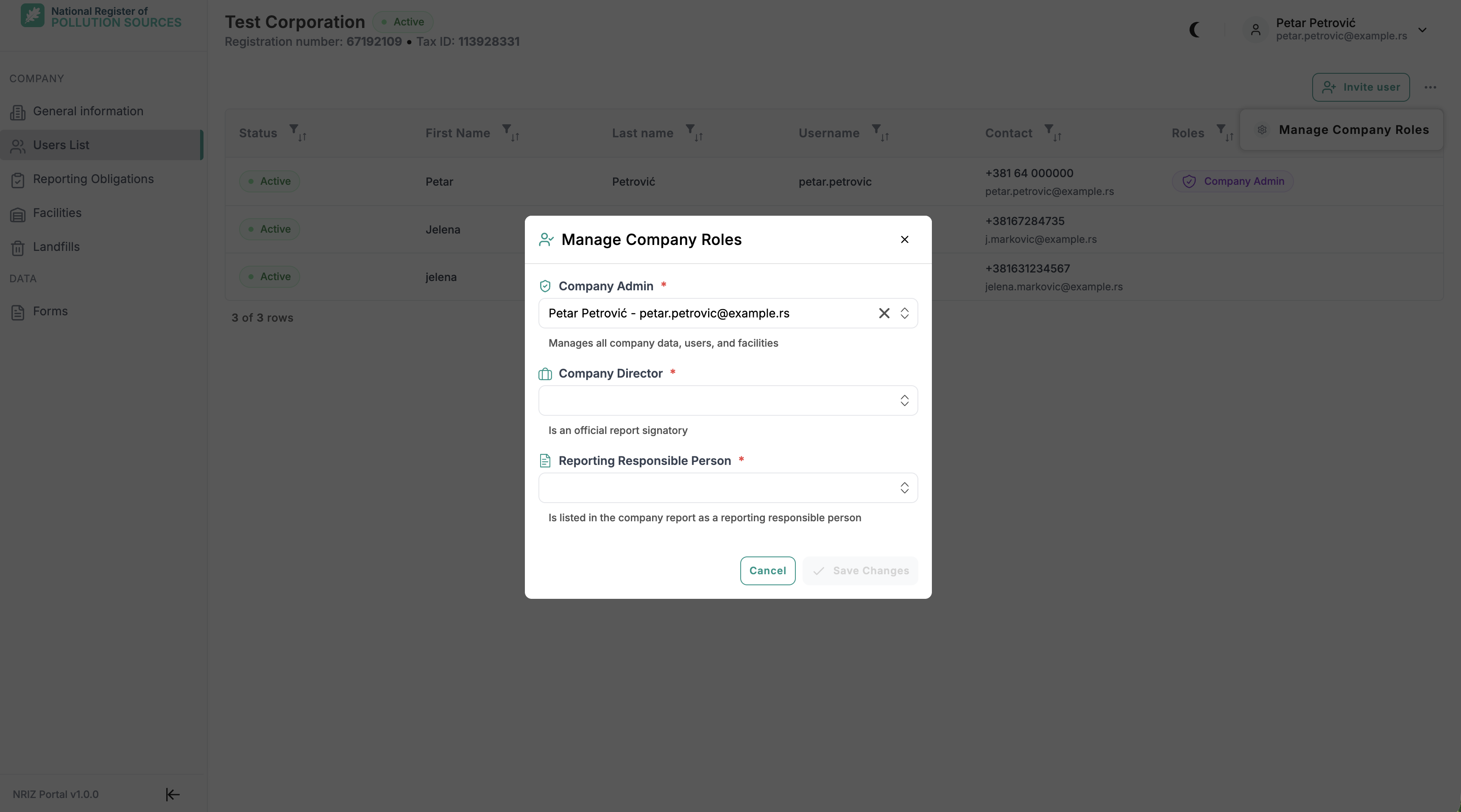
Director and reporting roles can also be set during an invitation. Later changes are made from Manage Company Roles.
- On Users List, open the ⋯ menu next to Invite user.
- Select Manage Company Roles.
- For each role, choose the person from the list. Company Admin is required.
- Select Save Changes.
There is always at least one Company Admin; the last Admin cannot be removed or deactivated.
Company access vs facility access
| Grant | What it unlocks |
|---|---|
| Company access | Company-level data and company-level forms (when obligations exist) |
| Facility access | One or more facilities and facility-level forms for those sites |
A person can have company access, facility access, or both. Facility-only users do not manage the whole company under My company.
Deactivate access
Deactivating a company user ends that person’s active relation to the company so they can no longer work in that company context. Use deactivation when someone leaves or must lose access. The last remaining Company Admin cannot be deactivated.
Common issues
| Symptom | Likely cause | Action |
|---|---|---|
| Invite button missing | Inactive company or missing Admin rights | Check company status and Admin role |
| Invitation blocked after email | Person already has access here, or already belongs to another NRIZ company | Use a different email, or adjust existing access |
| Pending access requests block missing | No open requests | The block appears only when someone requested access to this company |
| User signed in but sees nothing | Relation or grant missing | Invite / assign company or facility access, or approve a pending access request |
| Cannot deactivate Admin | Last Company Admin | Assign Admin to another user first |
Forms and reporting after access is set are covered under Forms.