The NRIZ portal is available after sign-in. Choose the path that matches the situation:
- Account already exists — Sign in with username and password
- Password forgotten — Forgot password
- No account yet — Create an account
- Account from the previous version of the NRIZ system — Activate the transferred account (one-time step)
- Invitation to join a company — open the acceptance link; steps differ if an account does not exist yet or already exists
Sign in
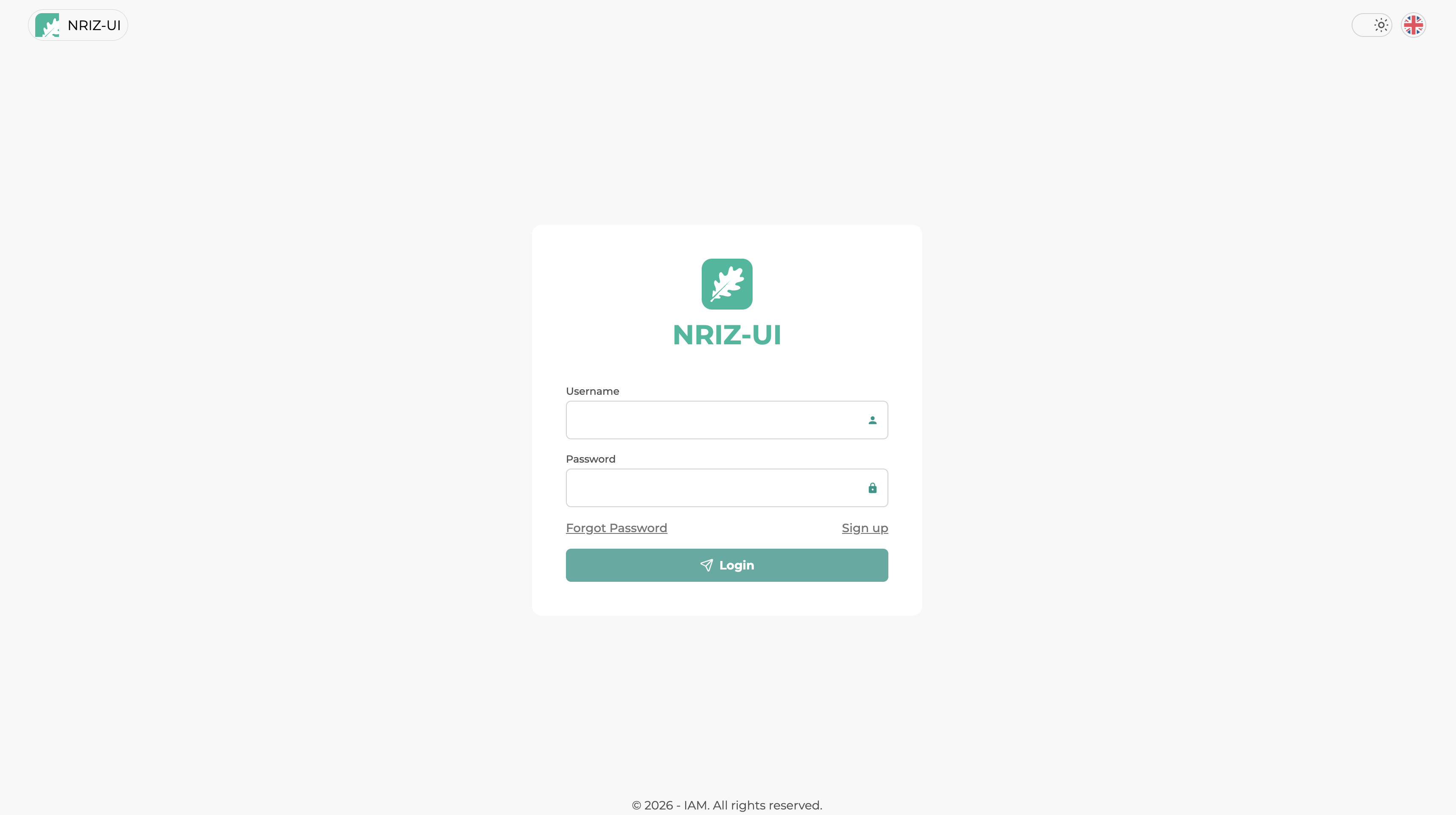
Sign-in starts on the sign-in page. Enter the username and password for the account, then confirm sign-in. If the password is not known, see Forgot password.
Forgot password
Password reset starts on the sign-in page. Select Forgot Password.
On the next screen, enter the Email Address registered on the account and select Submit.
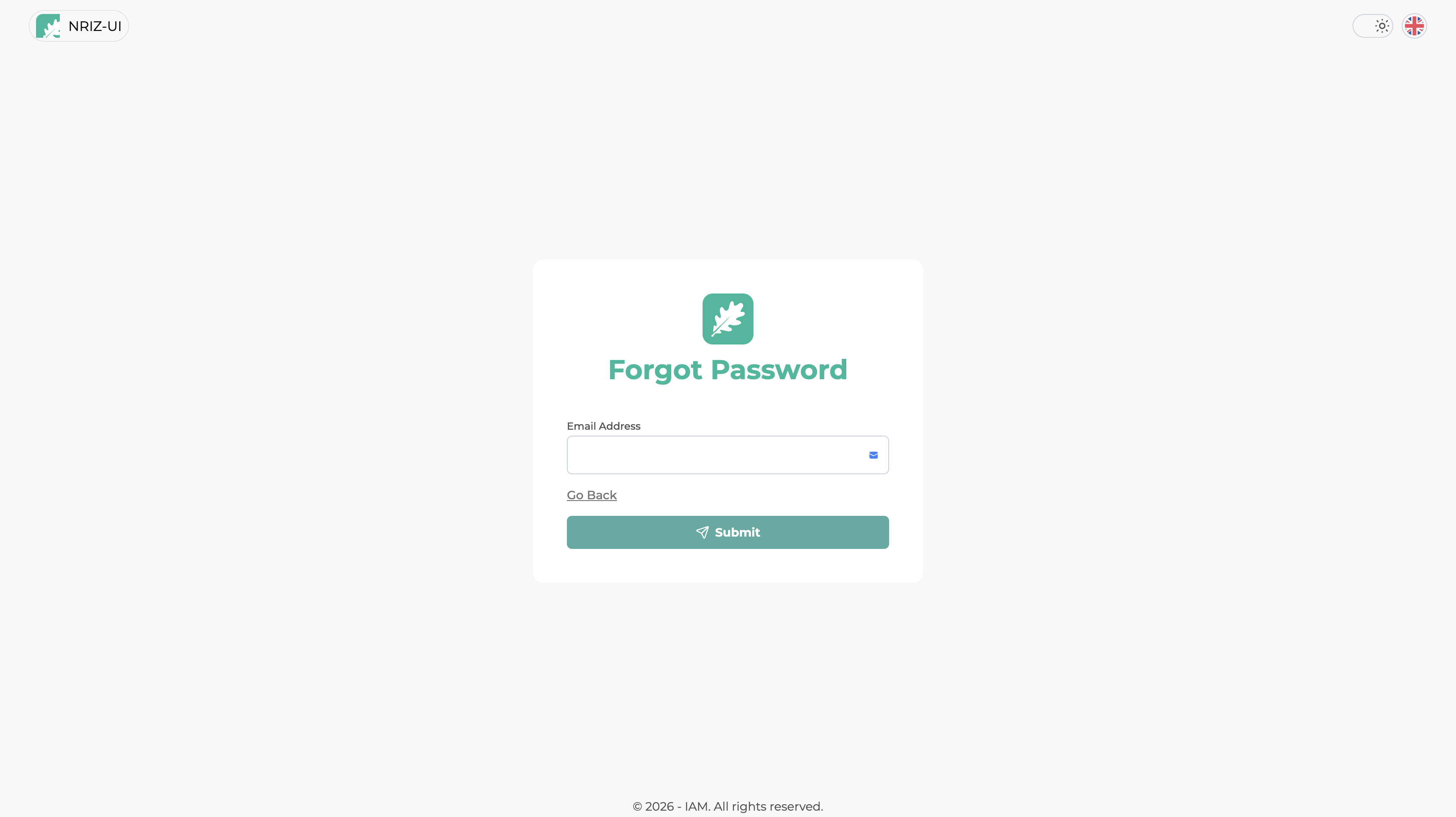
A verification code is sent to that email. Enter the code and select Verify. Code validity and attempt limits are the same as for registration — see Email verification.
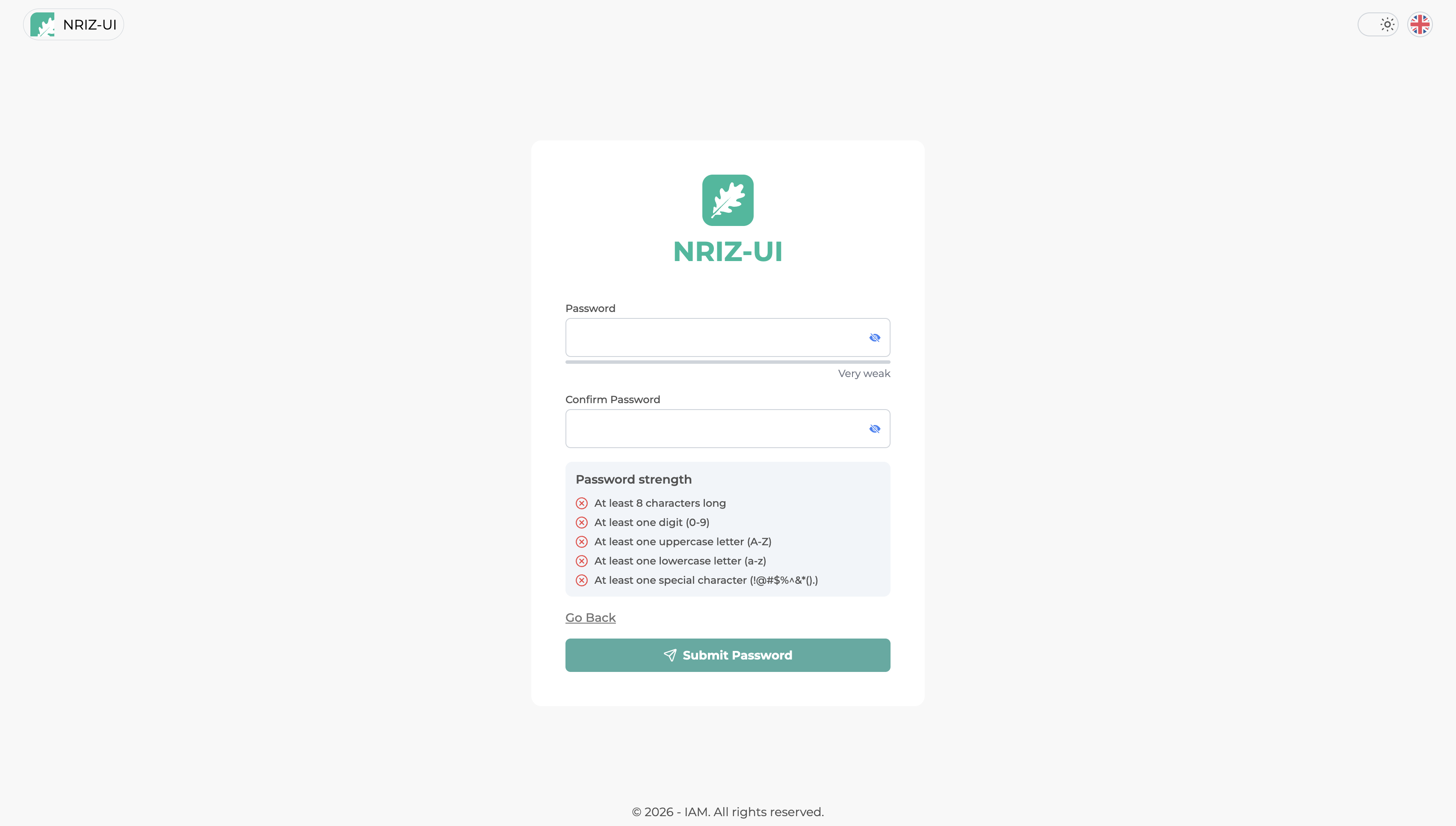
Then set a new password. The password must meet the same rules as during registration — see Password. When the rules are met, select Submit Password.
After the password is reset, sign in with the username and the new password.
Create an account
Registration starts on the sign-in page. Select Sign up.
Registration form
The form must be completed with a username (used later to sign in), first name, last name, a valid email address, and a phone number.
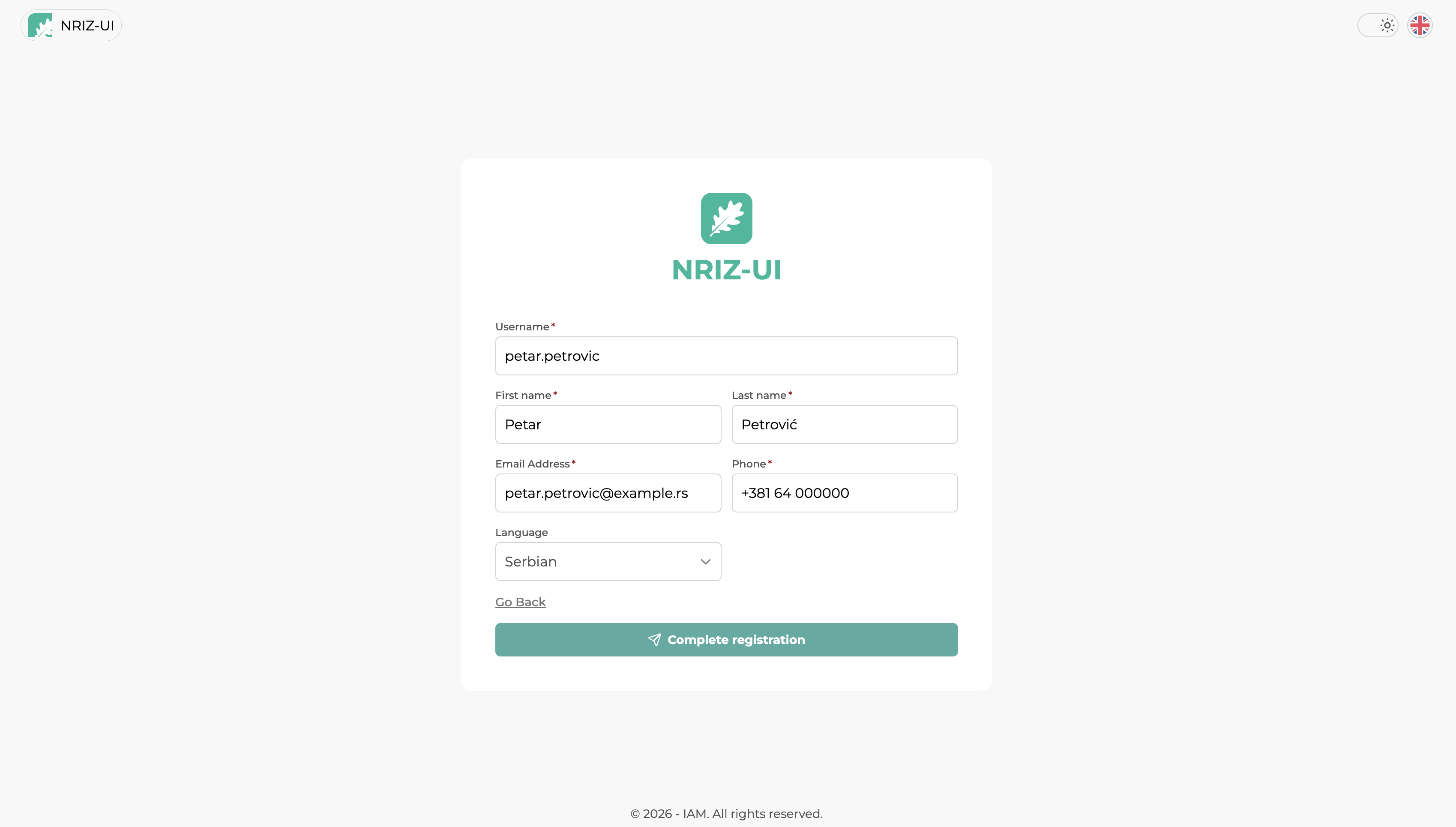
When the form is complete, select Complete registration.
Email verification
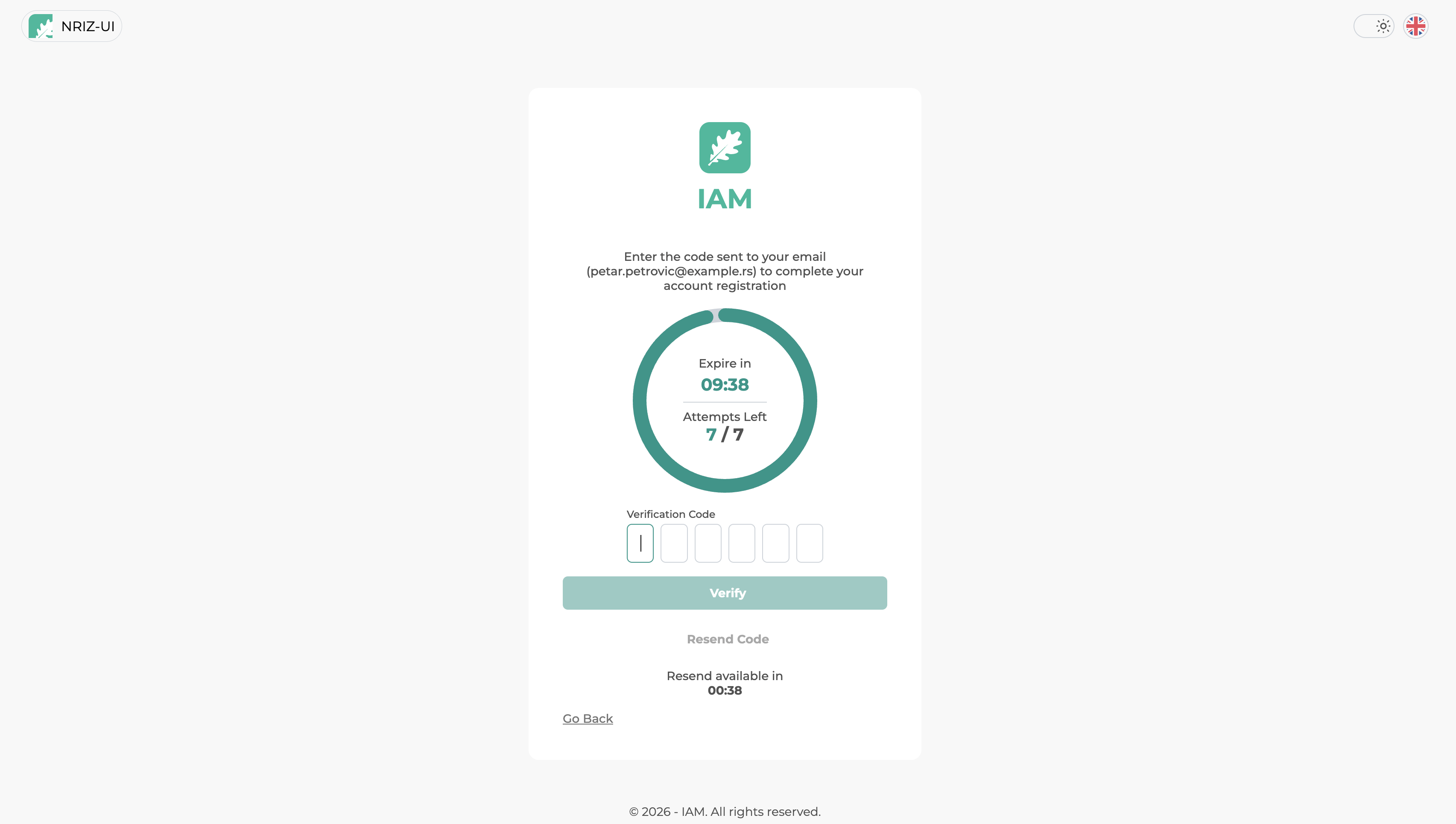
A verification code is sent to the email address entered on the form. The code is entered on the next screen to confirm access to that mailbox. After the code is entered, select Verify.
The code is valid for 10 minutes. If it expires before it is entered, a new verification code can be sent. There are at most 7 attempts to enter the code. After that, the registration request is no longer valid.
Password
The next step is to set a password.
When the password meets the rules, select Submit Password.
After successful registration, it is possible to sign in immediately using the username and the password that was set. After sign-in, if the account is not yet linked to a company, the portal opens company registration.
Activate an account from the previous version of the NRIZ system
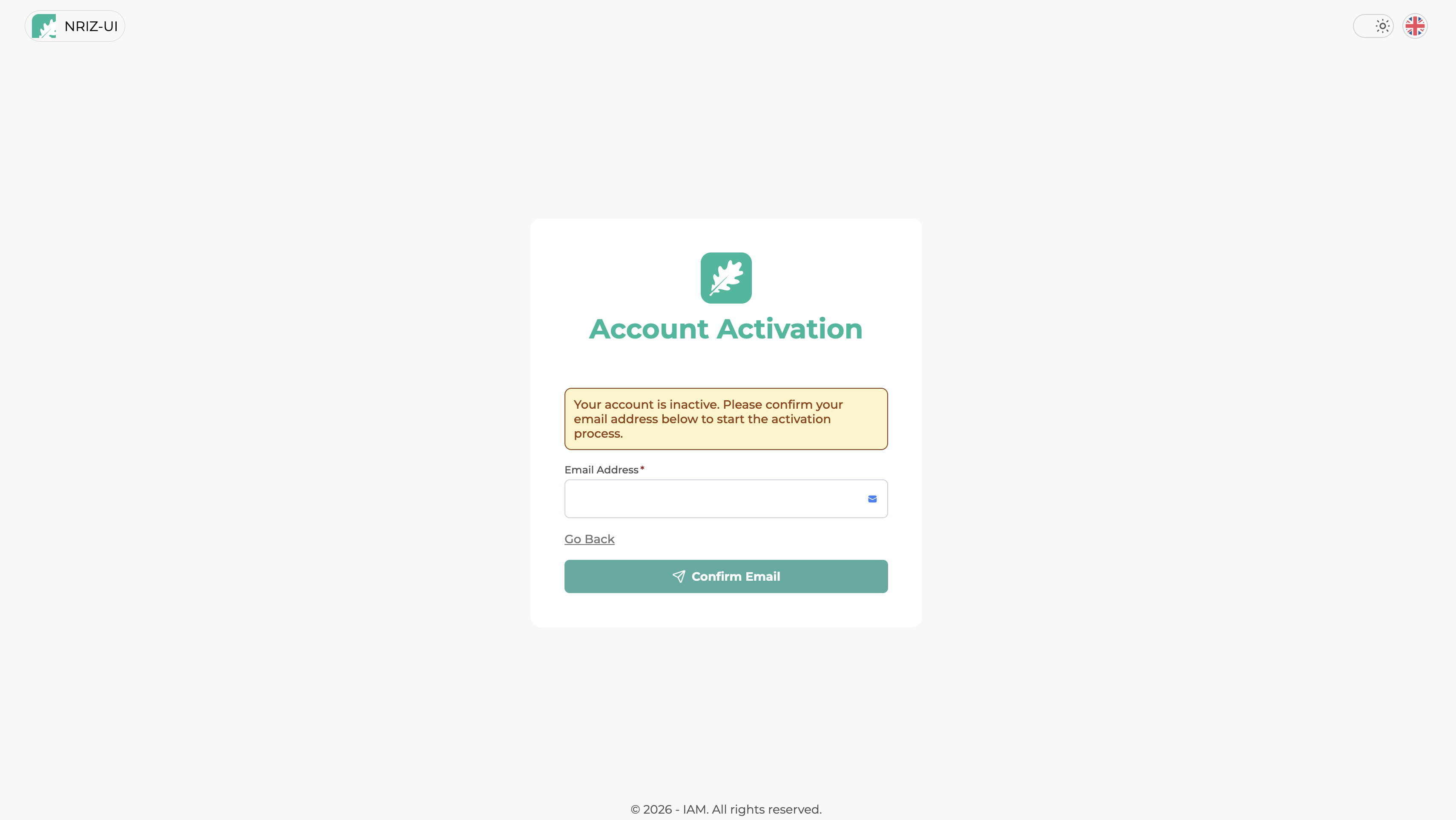
Accounts from the previous version of the NRIZ system were transferred without passwords. After sign-in is attempted with such an account, the Account Activation screen appears with a note that the account is inactive. Activation must be completed before the portal can be used.
Confirm email and verify
On the activation screen, enter an Email Address and select Confirm Email. What follows depends on whether the email matches the original account.
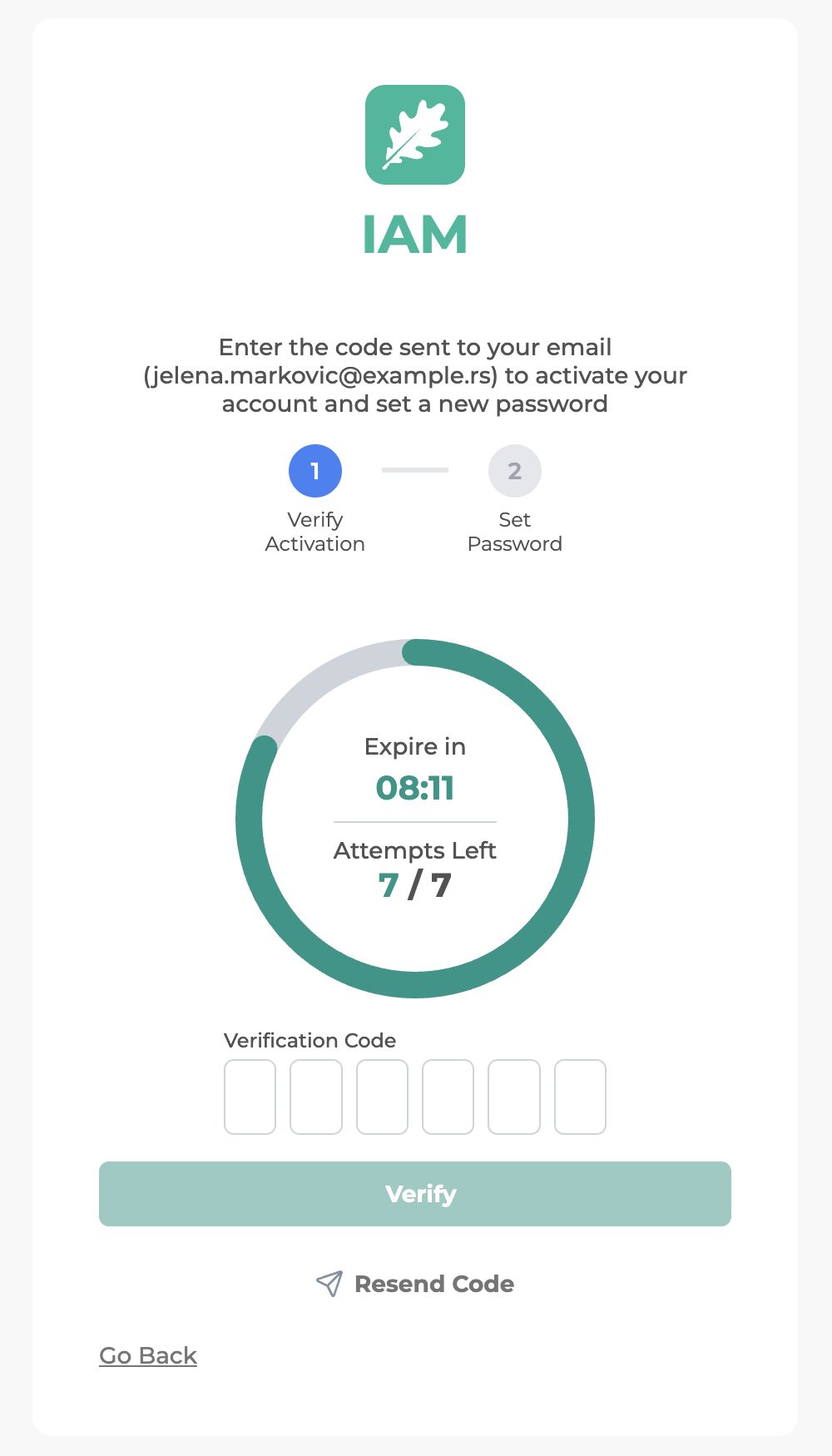
Same email as on the original account — activation continues in two steps: Verify Activation, then Set Password. Enter the verification code sent to that email and select Verify.
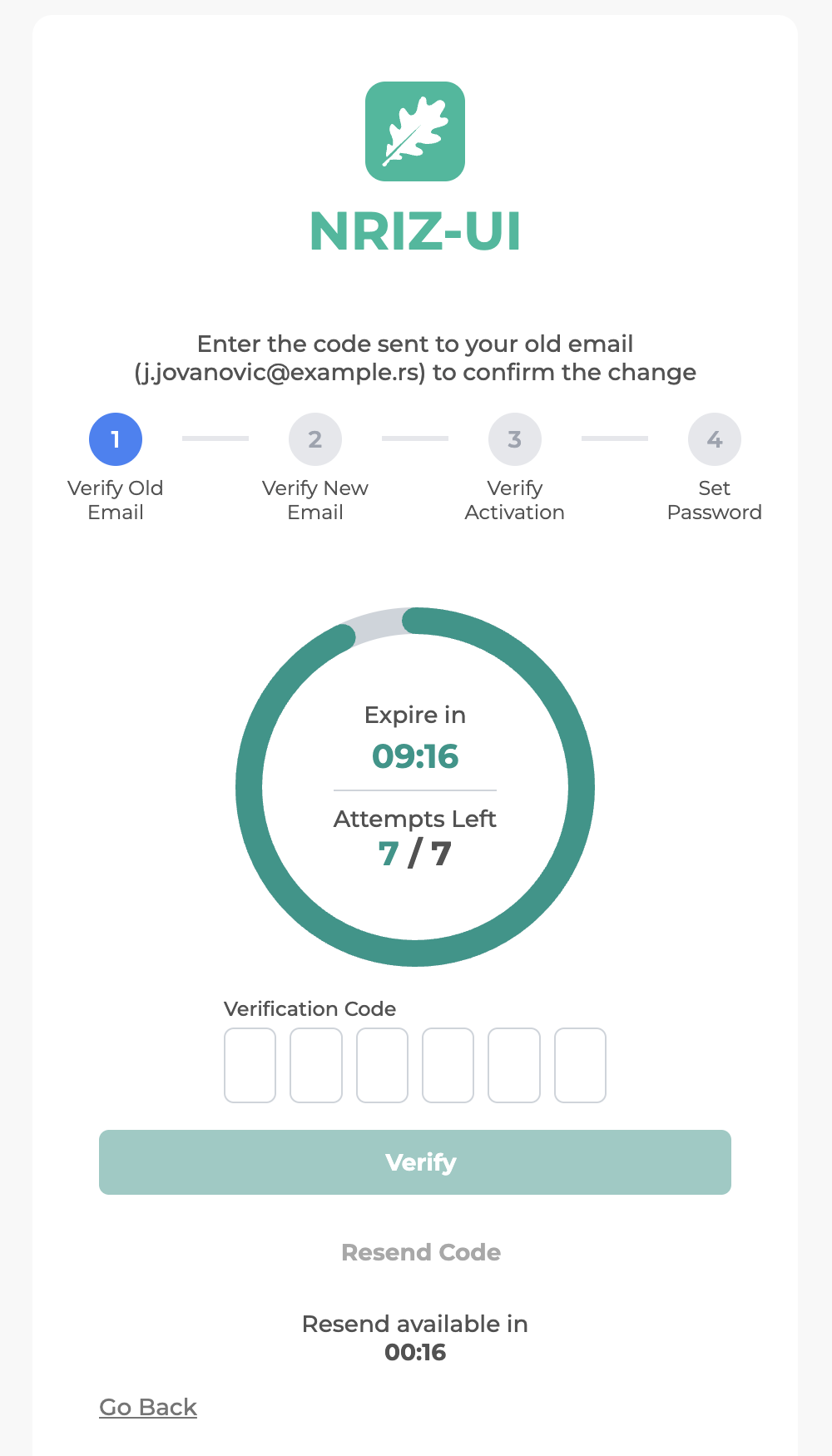
Different email — the change must be confirmed. Activation then continues in four steps: Verify Old Email, Verify New Email, Verify Activation, and Set Password. Enter the code sent to the original email, then the code sent to the new email, then complete Verify Activation.
In both cases, if the code expires or more attempts are needed, a new code can be sent with Resend Code. The code rules are the same as for registration — see Email verification (valid for 10 minutes, at most 7 attempts). After verification is complete, set a password — see Set password.
Set password
The last step is to set a new password. The password must meet the same rules as during registration — see Password. When the rules are met, select Submit Password.
After successful activation, sign in with the username and the new password. The previous password from the old system cannot be used.
Registration by invitation
A Company Admin can invite a person to join the company in the portal. The invitation is sent by email and includes an Accept invitation link. The link is valid for 7 days.
Opening the link starts acceptance in the portal. What happens next depends on whether an account already exists for the invited email.
No account yet
When the invitation is for a person who does not have an account yet, a standard registration is required first. Account activation is not used for invitations.
- Open the Accept invitation link from the email.
- On the sign-in page, select Sign up and complete registration as described in Create an account.
- After registration is complete, the invitation is applied and access to the company (and facilities, when included in the invitation) becomes available according to the rights set by the Company Admin.
Account already exists
When the invitation is for a person who already has an account:
- Open the Accept invitation link from the email.
- If the session is not open yet, sign in on the sign-in page with the username and password of the invited account.
- After sign-in as that account, the portal accepts the invitation automatically.
- Access to the company (and facilities, when included) becomes available according to the rights set by the Company Admin.
Company and facility data from the invitation become available after sign-in to the account the invitation was sent to.
If the link is invalid or has expired, a new invitation must be requested from the Company Admin.